Quick answer. To put a habit widget on your iPhone lock screen, lock the phone, press and hold the screen, tap Customize, choose Lock Screen, tap the widget area under the clock and pick the app. Three shapes fit there: a circular one, a two-line rectangular one, and a single line above the time. A grid of habits does not fit in that space; a count and your next item do. And in Monkway the lock screen widget is for looking, not for ticking: tapping it opens the app.
In this guide
- How to add the widget, step by step
- What fits in each lock screen shape
- Lock screen or home screen
- Looking, not ticking: what the widget can do
- How often it refreshes, and why it lags
- Which habits deserve the spot
- What to do when the widget is missing or blank
- How Monkway handles it
How to add the widget, step by step
The confusing part is that a widget is not added from inside the app. iOS does not let an app place itself on your lock screen: you do it from the system. It takes three taps.
- Lock the iPhone and press and hold the lock screen until the Customize button appears.
- Tap Customize and choose Lock Screen (the one on the left, not the wallpaper).
- Tap the widget box under the clock.
- Find the app in the list and tap or drag the shape you want.
- Tap Done, then Done again.
If you have never opened that screen, Apple's own iPhone guide walks through it: customise the lock screen and add widgets.
Two details that save time:
- The box under the clock is small and holds four slots. A rectangular widget takes two; circular ones take one each. If it will not let you add anything, the box is already full.
- Each lock screen keeps its own widgets. If you have one for a Work focus and another for a Sleep focus, you configure them separately. That is also useful: habits on your weekday screen, nothing on the weekend one.
What fits in each lock screen shape
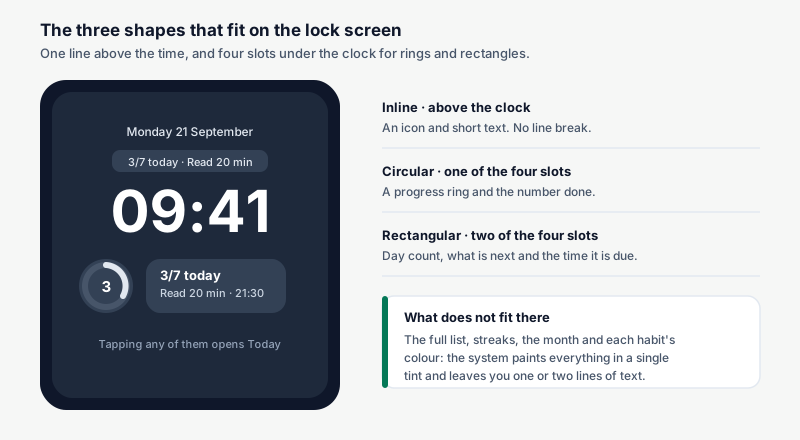
iOS offers three shapes and they are very different. This is not a matter of taste: each one holds a specific amount of information, and picking the wrong one is the most common reason a widget gets removed two days later.
| Shape | Where it goes | What actually fits | Who it works for |
|---|---|---|---|
| Circular | Under the clock, one slot | A progress ring and a number: done out of total | You want to know if you are on track without reading |
| Rectangular | Under the clock, two slots | Day count, the title of your next item and its time | You want a reminder of what is next |
| Inline | Above the clock, a single line | An icon and short text, no line break | You want a quiet nudge, almost invisible |
Three things worth knowing before you choose:
The system renders them in one colour. The lock screen tints every widget the same way, so your habit colours do not show up there. What separates one item from another is type size and icon, not colour.
Long text gets cut. The rectangular shape fits a title of about three or four words. If your habit is called "Morning study session on new material", the widget shows half of it. Shorter names pay off here.
Less is more. Two circular widgets plus a rectangular one fill the whole box and compete with the clock. The setup people keep for months is usually a single one: the rectangular, or a circular one next to the weather.
Lock screen or home screen
They do two different jobs. You see the lock screen dozens of times a day without meaning to; you see the home screen once you have already decided to use the phone. That is why the lock screen widget has to answer one question at a glance, while the home screen one can show the list.
| Lock screen | Home screen | |
|---|---|---|
| Times you see it a day | Many, without looking for it | Only when you unlock |
| Information it holds | A number and one line | Four to eight items with times |
| Colour | One tint, chosen by the system | The app's own colours |
| Question it answers | Am I on track? What is next? | What does my whole day look like? |
| Risk | You stop noticing it | It hides on page three |
| Recommended setup | A single widget, the rectangular one | One medium widget on page one |
The setup that works best is both: the rectangular one under the clock for "what is next", and a medium one on the first home page for the full day. If you are only going to add one, add the lock screen one. It is the only widget that shows up without being asked for.
Looking, not ticking: what the widget can do
This deserves a straight answer, because a lot of searches start with the idea of ticking habits off the lock screen without opening anything.
Since iOS 17 the system allows widgets to carry buttons and act without opening the app (Apple documents it for developers). In practice the lock screen gives you one or two lines, which is not enough room for checkboxes. Monkway does not put any there: tapping the widget opens the app on today, and you tick from the list.
That sounds like a limitation and in daily use it mostly is not, for one reason. Ticking is not the hard part. Remembering is. The widget solves remembering, which happens dozens of times a day, and leaves ticking for the moment the phone is already in your hand.
If what you want is the phone to nudge you at a specific time, a widget is the wrong tool. That is a reminder, and it works differently. We cover it in how to set habit reminders.
| What you want | Does the lock widget do it | What works better |
|---|---|---|
| Remember the habit exists | Yes, that is the point | — |
| See whether something is left today | Yes, through the count | — |
| Tick without opening the app | No, a tap opens the app | Ticking from Today, already open |
| Be alerted at 07:00 | No, it makes no sound | A reminder with a time |
| See a streak or the month | Does not fit | The Progress screen |
| See the whole week | Does not fit | A medium home screen widget |
How often it refreshes, and why it lags
Widgets are not the app. They run in a separate process on a refresh budget the system hands out: iOS decides when to reload them and caps how often they can ask, something Apple explains in the WidgetKit documentation. No habit widget updates the instant you tap.
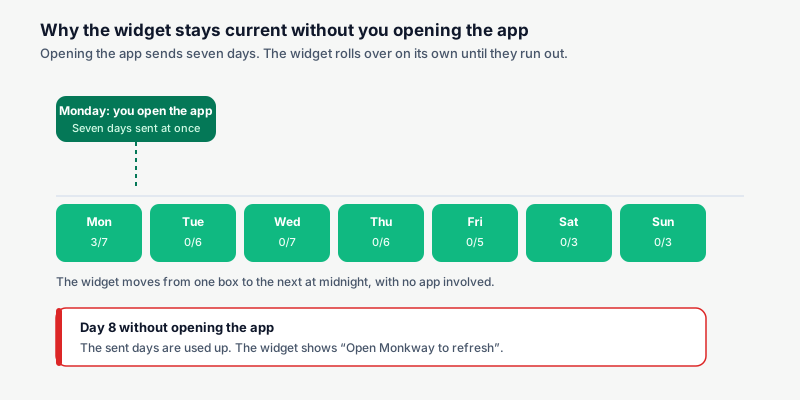
Well-built apps work around most of that by sending the data ahead of time. In Monkway, every time you open the app it sends the widget the next seven days with their habits and tasks. The widget then rolls over to the next day on its own at midnight, without asking anyone. If more than a week passes without you opening the app, it runs out of valid data and says so: "Open Monkway to refresh".
That explains the two behaviours that confuse people most:
- You tick a habit and the ring takes a moment. Expected. It updates when the system gets to the request, not instantly.
- The widget shows yesterday. Almost always the app has not been opened for days, or it was closed right as the date changed. Opening it for a second fixes it.
Which habits deserve the spot
The widget has room for one thing. If you have eight habits, seven will not appear, and that is fine: the lock screen is not a dashboard, it is a reminder.
The rule that works best is the time rule. The rectangular widget shows what is next, and to know what is next it needs times. A habit with no time still exists, but it does not compete for that spot.
| Kind of habit | Worth the widget? | Why |
|---|---|---|
| Fixed time and easy to forget | Yes | Exactly what the rectangular shape shows |
| The one you started this week | Yes | The first days are the ones you forget |
| Automatic for months already | No | It takes the slot and tells you nothing |
| No time, "sometime today" | It only adds to the count | It cannot be "next" |
| Tasks due today | Yes, they show up on their own | They share the day's timeline |
| Ten habits at once | They do not fit | The problem there is the number, not the widget |
If your list is long enough that the widget's count is alarming, the fix is not in the widget. It is in how much you put in the day: see how many habits to start at once and how to tell if your day is overloaded.
What to do when the widget is missing or blank
Nearly every problem is one of these five, and none of them needs a reinstall.
| What you see | Usual cause | What to do |
|---|---|---|
| The app is not in the widget list | The app has not been opened since install | Open it once, then go back to Customize |
| The widget shows an empty ring | Nothing is scheduled for today | Fine if today is free; otherwise check the habit's frequency |
| It says "Open Monkway to refresh" | More than a week without opening the app | Open it for a second and lock again |
| It shows yesterday | The app was not opened as the day changed | Open it; it corrects itself right away |
| It will not let you add another widget | The box under the clock is full | Remove one before adding the new one |
| It looks grey and colourless | That is the system's design | The lock screen tints everything one colour |
If it is still blank after opening the app, remove the widget, add it again and restart the phone. That order clears up practically everything left.
How Monkway handles it
In Monkway the widget is called Today in Monkway and it shows what the Today screen shows: habits with a time and tasks due today, merged and sorted by time. It is not a grid of boxes or a streak counter, which is the same choice behind how to track habits.
- Three lock screen shapes. The circular one is a ring with done out of total. The rectangular one shows "3/7 today" plus the title and time of the next thing you have pending. The inline one fits above the clock.
- Two home screen shapes. The small one shows what is next plus the count; the medium one shows the day's timeline with up to eight items, their times, and ticks on what is done.
- Calendar events appear but do not count. If you sync calendars, up to three of the day's events show in the timeline. The count only adds up what depends on you: habits, tasks and reminders.
- The guide lives inside the app. Under Profile → Widgets you get the home and lock screen steps, with a preview of each one before you add it.
- Language travels with the data. The widget labels "Today", "All done" or "Nothing today" in the language you set in the app, not the phone's.
- Seven days ahead. Opening the app sends the next seven days, so the widget moves from one day to the next without depending on you opening it every morning.
For now widgets are an iPhone feature. The app works the same on Android and in the browser, but there is no widget to add. If you want to understand how habits and tasks end up in one list, which is what the widget mirrors, that is in an app for habits and tasks together.
Frequently asked questions
Can you tick a habit from the lock screen?
Not in Monkway: tapping the widget opens the app on today and you tick from there. The lock screen widget is built to show the count and what is next without unlocking.
Why is the lock screen widget black and white?
Because the system draws it. iOS tints every lock screen widget the same way so they sit well with the clock and wallpaper, so your habit colours do not show there.
How many widgets fit under the clock?
Four slots. A rectangular widget takes two and a circular one takes one, so you can have one rectangular plus two circular, or four circular.
Why does the widget show old data?
Because the widget lives on the data the app sends it. Monkway sends seven days ahead; if more than a week passes without opening it, the widget runs out of valid data and says so. Opening the app fixes it.
Does the widget drain the battery?
Not much. It is not running all the time: the system wakes it at specific moments on a limited refresh budget. That is also why it does not update the second you tap.
Can I have different widgets on each lock screen?
Yes. Every lock screen keeps its own widgets, so you can put habits on the one you use on weekdays and leave the weekend one clear.
Is there an Android widget?
Not today. The app works on Android and in the browser, and home and lock screen widgets are an iPhone feature for now.
What about habits with no time?
Leave them without one: they still add to the day's count and appear at the end of the medium widget's timeline. For the rectangular lock widget, which shows "next", it helps if the two or three habits you forget most do have times.
Start with one widget
Put the rectangular one under the clock and add nothing else for a week. If you catch yourself looking at it and changing what you were about to do, it is doing its job. If you never look at it, the problem is not the widget: it is that your list for today says nothing you care about.
Monkway is free to start, and the steps to add the widget are inside, under Profile → Widgets.